
Rendered HTML vs Source HTML: Why Google Sees a Different Page Than You
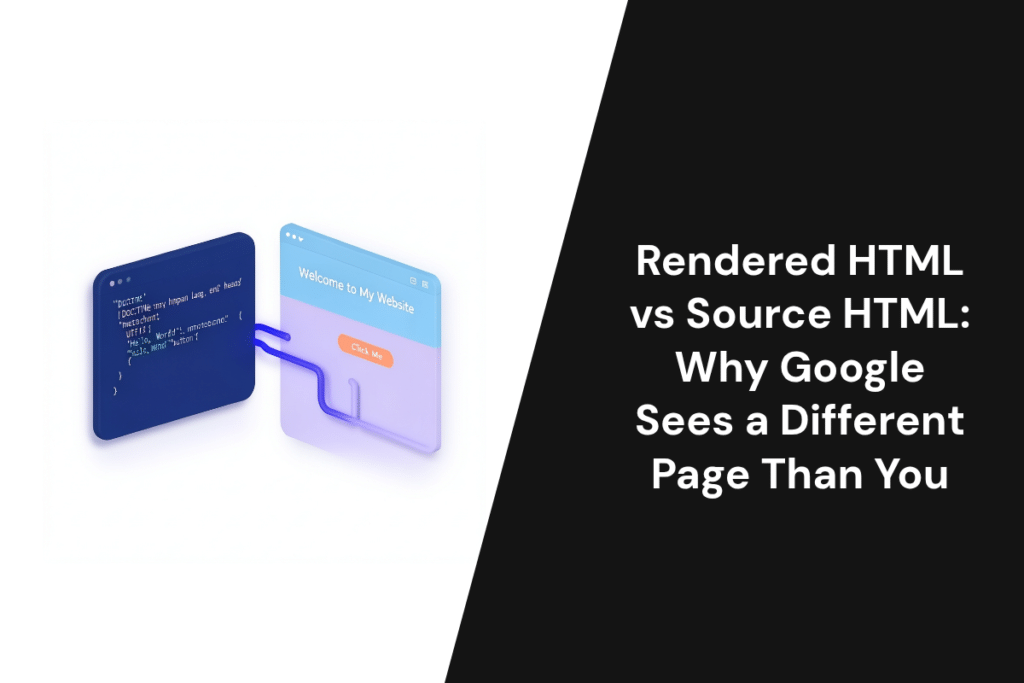
Google judges your page by what it looks like after JavaScript runs, not by the file your server first sends. That first file is the source HTML. The finished page is the rendered HTML. When the two differ, some crawlers can miss your content, links or tags, and a few differences can keep a page out of Google’s index.
What is the difference between rendered HTML and source HTML?
Source HTML is the raw code your server sends before any JavaScript runs; you see it with View Page Source. Rendered HTML is the final page after the browser or Googlebot runs JavaScript and builds the DOM; you see it with Inspect or Search Console’s URL Inspection. Google indexes the rendered version, but many AI crawlers read only the source.
Google’s own Search Central video on source HTML vs rendered HTML explains it the same way. The source is the starting point. The DOM is the browser’s live model of the page, and the rendered HTML is that model once scripts have added, changed or removed parts of it.
On a plain WordPress blog, the two versions are often close. On a React, Next.js or Shopify site with heavy apps, they can look like two different pages. A 2020 Searchviu crawl study found differences on 96% of more than 200 domains, in text, internal links, titles or meta tags.
|
Source HTML |
Rendered HTML | |
|
What it is |
The HTML file the server returns |
The DOM after JavaScript has run |
|
When it exists |
As soon as the server responds |
After scripts load and run |
|
How to see it |
View Page Source, or a crawler with JavaScript off |
Inspect, URL Inspection, or a crawler in render mode |
|
Also called |
Raw, response or initial HTML |
DOM snapshot or rendered DOM |
|
Who reads it |
All crawlers, including AI and social bots |
Googlebot and other crawlers that run JavaScript |
|
SEO risk |
Content missing if the page relies on JavaScript |
Tags changed or added late by scripts |
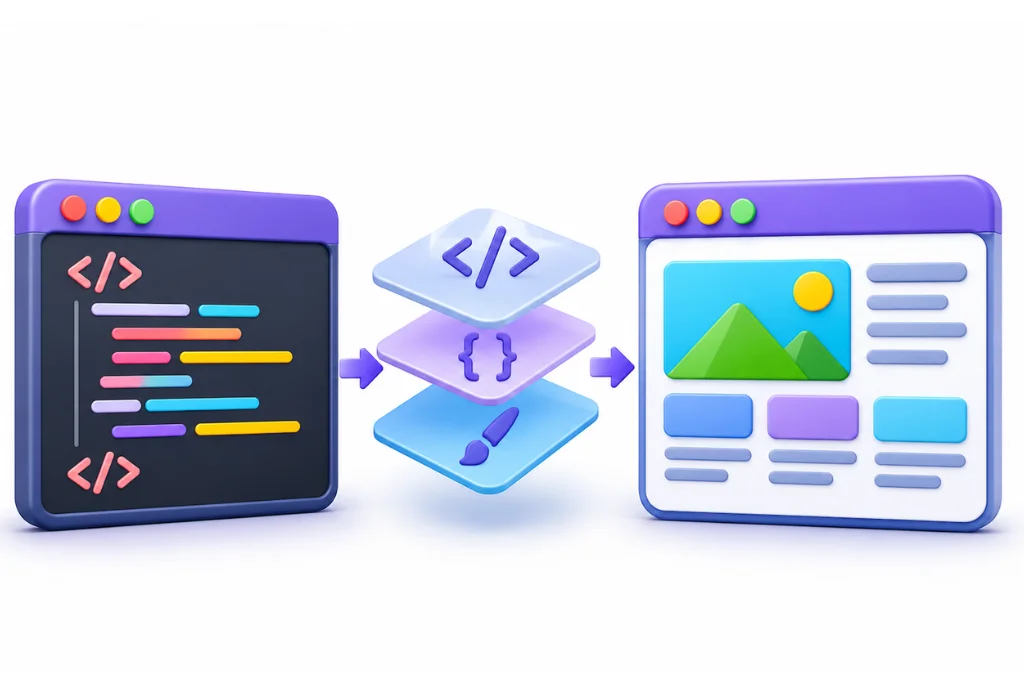
How a page turns from source HTML into rendered HTML
The server sends the HTML file first. The browser reads it, builds the DOM, then loads and runs the JavaScript, which can change that DOM. Googlebot follows the same steps, but in stages: crawl, then render, then index.
Google’s JavaScript SEO basics say Googlebot queues every page with a 200 status for rendering, unless a robots meta tag or header tells Google not to index it. Google then uses the rendered HTML to index the page.
The wait for rendering is usually short, but not always. In a July 2024 study of more than 100,000 Googlebot fetches, Vercel and MERJ found that every HTML page on nextjs.org got a full render. The median delay was 10 seconds and p75 was 26 seconds. The p90 was about 3 hours and the p99 about 18 hours.
So on that site, content that only appeared after rendering was seen by Google, just later. For the full path from crawl to ranking, see our guide on how search engines crawl, index and rank content.
Why Google sees a different page than you
Google renders your page in a clean session, with no cookies, no login and no clicks. Inspect in Chrome shows your own session instead, with your cookies, your login, your language choice and every click you have made. Googlebot has none of these.
Google’s guide to fixing search-related JavaScript problems says its renderer does not keep state between page loads. Cookies, local storage and session storage are cleared each time. Features that need user permission, such as location prompts, do not work for Googlebot either.
Google also does not act like a visitor. Its lazy loading guide states that Google Search does not interact with your page. It does not scroll, click or type. Anything that waits for one of those actions may never reach Google’s index.
That gives you three versions of the same URL: the source HTML, the page in your browser, and the page Googlebot renders.
View Source vs Inspect vs URL Inspection: which view shows what
View Source shows the source HTML, and Inspect shows the live DOM in your own browser. The URL Inspection tool in Search Console shows the HTML Google got and a screenshot of how it sees the page. A crawler in render mode shows both versions for many pages at once.
|
Method |
What it shows |
Best for |
Limit |
|
View Page Source (Ctrl+U, or the view-source: prefix) |
The source HTML exactly as the server sent it |
Checking what non-rendering bots see |
Shows nothing that JavaScript adds |
|
Inspect (Chrome DevTools, Elements panel) |
The live DOM in your browser right now |
Seeing what scripts changed after load |
Includes your cookies, clicks and login, not Googlebot’s view |
|
URL Inspection in Search Console |
View crawled page: the HTML Google got on its last crawl. Test live URL: how Google-InspectionTool sees the page now, with a screenshot |
Confirming what Google actually crawled |
One URL at a time, and only for sites you own (use the Rich Results Test for others) |
|
Crawler in render mode (Screaming Frog, Sitebulb) |
Source and rendered HTML for every page, side by side |
Finding patterns across the whole site |
Its renderer is not Googlebot, so treat it as a guide |
Google’s URL Inspection help page explains both views. Use View crawled page to see the HTML Google got on its last crawl. Use Test live URL after a fix, to see how Google reads the page today.
The Rich Results Test also shows the rendered HTML. Google points to both tools for this job in its JavaScript troubleshooting guide.
The 8 SEO elements to compare
Compare the same eight elements in the source and the rendered HTML: title, meta description, meta robots, canonical, H1 and main content, internal links, hreflang, and structured data. If one of them exists only in the rendered version, or changes between versions, write it down.
- Title: Google says you can set or change the title with JavaScript. We still recommend having the final title in the source, so every crawler sees the same one.
- Meta description: The same rule applies. If the source holds a generic description that JavaScript swaps later, crawlers that do not render see the generic one.
- Meta robots: Look for noindex or nofollow in either version. A mismatch here is serious, as the next section explains.
- Canonical: Check that there is only one canonical tag, and that if it appears in both versions, both point to the same URL.
- H1 and main content: Search the source for your H1 and the first real paragraph. If the source is an empty app shell, Google must render to see anything.
- Internal links: Google’s guide to crawlable links says Google can generally only crawl links that are a elements with an href. Menus built with click handlers and no href can hide whole sections.
- Hreflang: Check that every language version is listed in both versions, with the right codes.
- Structured data: JSON-LD that a script injects, such as Product or Organization schema, should match what is on the page and appear in the rendered HTML. Run the page through the Rich Results Test to confirm Google can read it, because schema added by a script never shows in View Source.

The noindex and canonical traps Google warns about
Two differences can stop a page from being indexed even when the rendered page looks perfect. The first is a noindex tag in the source that JavaScript removes. The second is a canonical tag that JavaScript changes to a different URL.
Google’s JavaScript SEO basics say that when Google sees noindex, it may skip rendering and JavaScript. So a script that removes noindex may never run for Googlebot. The page stays out of the index, while your browser shows a clean, indexable page.
The canonical works the same way. Google advises that if you do set the canonical with JavaScript, it should match the value in the original HTML. Conflicting or multiple canonical tags may lead to unexpected results. A theme that adds a second canonical, or an app that rewrites it, can create exactly that conflict.
Content behind tabs, accordions and load more buttons
Google does not click, so content that loads only after a click may never be indexed. Content that is already in the HTML and only hidden by CSS inside a tab or accordion is a different case. It is in the page from the start, so it is there when Google renders.
Start with a quick test. Open View Page Source and search for a sentence from the hidden tab. If it is there, that is a good sign; confirm with View crawled page or Test live URL. If it only appears after you click, it is fetched on demand, and Googlebot will not trigger that.
Load more buttons and infinite scroll carry the same risk for product lists and blog archives. Some old forum answers claim Google clicks these buttons. Google’s lazy loading guide says it does not interact with the page. Give each set of items its own URL, linked with a normal a href link, so Google can reach every product.
AI crawlers only read the source
The ChatGPT and Claude crawlers do not run JavaScript, so they read only your source HTML. If your text, prices or product details load through scripts, those tools may never see them.
In December 2024, Vercel and MERJ found that the ChatGPT and Claude crawlers do not execute JavaScript. On Vercel’s network in one month, GPTBot made 569 million requests and Claude made 370 million.
OpenAI lists its crawlers, including OAI-SearchBot, GPTBot and ChatGPT-User, in its bot documentation. So a page that relies on rendering can rank in Google and still be missed by AI tools whose crawlers do not run JavaScript.
UAE sites: language switchers, hreflang, RTL and overlays
Bilingual UAE sites add four more places where source and rendered HTML drift apart: the Arabic and English switcher, hreflang tags, the RTL direction setting, and pop-ups for cookies or location. Check each one on both language versions.

Arabic and English switchers
Some themes swap the language in the browser without changing the URL. The source then holds only one language, and Google has no separate Arabic URL to index. Each language needs its own URL, linked from the switcher with a normal a href link.
Hreflang ar-AE and en-AE
Search the source for your hreflang tags. If ar-AE and en-AE pairs appear only in the rendered HTML, a script or app is adding them late. Make sure each page lists itself and its partner, and that both versions agree. We cover this in our international and multilingual SEO work.
RTL and the lang attribute
Check the html tag in the source for the lang attribute and the dir rtl setting on Arabic pages. If a script sets them after load, the source may carry the wrong language and direction for crawlers that do not render.
Shopify, Salla and Zid themes
On hosted platforms, apps and theme scripts often add reviews, related products, schema or translations after load. Compare one product page and one collection page in both views. Note what only exists after rendering.
Cookie and geo-redirect overlays
A cookie banner or a country pop-up can cover the page in the Test live URL screenshot. A script that redirects visitors by location may send Googlebot to a different version. Check that the screenshot shows your content and that the final URL is the one you expect.
How to run the 10-minute diff on one page and across the site
Pick one important URL and save two versions: its source HTML and the HTML Google got, from Search Console. Then check the eight elements in each. For a whole site, run a crawler in render mode and sort pages by what differs.
For one page:
- Open View Page Source and save it as a text file.
- In Search Console, run URL Inspection, open View crawled page, and copy the HTML. If the URL is not indexed yet, use Test live URL.
- Paste both into a free diff checker and compare.
- Search both versions for the title, meta robots, canonical, H1, main text, internal links, hreflang and JSON-LD.
- Look at the Test live URL screenshot for overlays or empty sections.
- Write down every element that exists only in the rendered version, or that changes between versions.
For the whole site, crawl twice in Screaming Frog or Sitebulb: once with JavaScript rendering off, once with it on. Compare word counts, link counts, titles and canonicals. Pages where the rendered word count is far higher than the source are your JavaScript-dependent pages. Our technical SEO services cover this kind of render check at scale.
When a difference does not matter, and when to fix it
Most differences are harmless. Tracking scripts, chat widgets, style changes and small text tweaks do not affect indexing. Fix a difference when it touches noindex, the canonical, internal links, main content or hreflang.
|
Difference |
Verdict |
Why |
|
Noindex in source, removed by JavaScript |
Fix now |
Google may skip rendering, so the page stays out of the index |
|
Canonical changed or duplicated by JavaScript |
Fix now |
Conflicting canonicals may lead to unexpected results |
|
Internal links only in rendered HTML |
Fix |
Found later or not at all, and AI crawlers miss them |
|
Main content only in rendered HTML |
Fix |
Indexed after a delay, and invisible to AI crawlers |
|
Hreflang only in rendered HTML |
Fix |
Language signals reach Google late, and crawlers that do not render miss them |
|
Title or description changed by JavaScript |
Review |
Allowed by Google, but keep the source version correct |
|
Analytics, chat and tracking scripts |
Ignore |
No effect on what gets indexed |
|
Layout and style changes |
Ignore |
Same content, different look |
The lasting fix is to put important content and tags in the source HTML. That usually means server-side rendering, static rendering or hydration. Google’s page on dynamic rendering calls that older approach a workaround, not a long-term solution, and recommends these options instead.
The fix does not always mean a rebuild. Sometimes the cause is one theme setting, one app or one template. If you want a second pair of eyes, we run this comparison on your key templates as part of a technical SEO audit.
FAQ
Rendered means the page after the browser has read the HTML, built the DOM and run the JavaScript. The rendered HTML is the final code behind what you see on screen. It can differ from the source HTML the server first sent.
The source is the HTML file your server sends when a browser or crawler asks for a page. You can see it with View Page Source or by adding view-source: before a URL in Chrome. It shows nothing that JavaScript adds after the page loads.
View Source shows the file the server sent, before any scripts run. Inspect shows the live DOM after JavaScript has changed it, in your own browser session. That session includes your cookies, login and clicks, so it is not exactly what Googlebot sees.
Rendering in SEO is the step where Google runs a page’s JavaScript to build the final HTML. Google then uses that rendered HTML to index the page. If key content appears only after rendering, Google sees it later, and crawlers that do not render may never see it.
Yes. Google renders pages with a 200 status and indexes the rendered HTML. Content that needs a click or scroll to load may be missed, because Google does not interact with the page. A noindex tag in the source can also stop rendering.
Use the URL Inspection tool in Google Search Console. View crawled page shows the HTML Google stored, and Test live URL shows how Google sees the page now, with a screenshot. The Rich Results Test also shows the rendered HTML of a page.
Not strictly, because Google can render JavaScript. But server-side or static rendering puts your content and tags in the source HTML. That way every crawler can read them without waiting for rendering, including AI crawlers that do not run JavaScript.
It can be either. With client-side rendering, the browser builds the page from JavaScript. With server-side rendering, the server builds the HTML first and sends a complete page. Many frameworks render on the server first, then the browser adds interactivity, which is called hydration.
Sources
- Google Search Central: Understand JavaScript SEO basics
- Google Search Central: Fix Search-related JavaScript problems
- Google Search Central: Fix lazy-loaded content
- Google Search Central: Make your links crawlable
- Google Search Central: Dynamic rendering as a workaround
- Search Console Help: URL Inspection tool
- Google Rich Results Test
- Google Search Central video: Source HTML vs. Rendered HTML
- Vercel and MERJ: How Google handles JavaScript throughout the indexing process
- Vercel and MERJ: The rise of the AI crawler
- Searchviu: JavaScript crawling study, rendered HTML vs original source code
- OpenAI: Overview of OpenAI crawlers