
How to Read the Google Search Console Page Indexing Report, Line by Line
The Page indexing report (Indexing > Pages in Google Search Console) shows which of your URLs Google has indexed and gives a reason for every page it has not. Not every page should be indexed. Fix server errors, broken redirects and accidental noindex or robots.txt blocks first, and treat canonical duplicates and redirects as normal.
What is the Page indexing report in Search Console?
The Page indexing report is the Search Console screen that counts your indexed and not indexed URLs. For each not indexed URL, it names the reason in a fixed label, such as “Soft 404” or “Page with redirect”. Use it to check whether Google has stored the pages you care about.
Indexing sits between crawling and ranking. Our guide to how search engines crawl, index and rank content explains each stage. This post stays on one screen and reads it from top to bottom.
Where to find it
Open Search Console, pick your property and click Indexing, then Pages in the left menu. Older guides call this the Index Coverage report. In 2022, Search Engine Roundtable reported, unconfirmed at the time, a Google screenshot that showed “Coverage” renamed to “Pages”, and the menu reads Indexing > Pages today. Labels such as “Submitted URL has crawl issue” belong to the old report.
Indexed does not mean ranking
A page in the green “Indexed” count is stored and can be shown in results. That does not mean it ranks for anything useful. If you want to confirm a single page, our post on what “indexed” actually means in Google shows how to check it.
How to read the top of the report: the chart, the sitemap filter and the delay
The top of the report shows two numbers, Not indexed and Indexed, over a chart. Above them sits a filter that changes which URLs are counted. Set the filter before you read anything else, or you may chase pages that never mattered.
The indexed vs not indexed chart
The grey line is not indexed URLs and the green line is indexed URLs. Look at the trend, not the size of the grey number. A large, steady grey count is common on stores and blogs. A sudden drop in the green line, or a sudden jump in grey after a release, is the signal to act.
Below the chart, “View data about indexed pages” opens your indexed count history and a sample of indexed URLs.
The sitemap filter
The dropdown at the top left gives four views: “All known pages” (the default), “All submitted pages”, “Unsubmitted pages only” and a specific sitemap URL. Switch to “All submitted pages” first. Those are the URLs you told Google matter, so a not indexed reason here deserves more attention.
Then look at “Unsubmitted pages only”. Filter URLs, tracking parameters and old pages tend to show up here. A big unsubmitted count can point to a crawl and site structure issue, not a content one. Our guide to XML sitemaps and what to include helps you decide what belongs in the submitted set.
Why the numbers lag
The report is not a live view, so a fix you made today will not change the chart today. Give Google time to recrawl the affected URLs before you judge a fix. For new content, Google’s help page says it can take a week or so for Google to start crawling and indexing a new page or site.
The “Why pages aren’t indexed” table
Under the chart is a table with one row per reason. Each row shows the reason, the source, the validation status and the number of pages. The Source column says “Website” or “Google systems”. Google says you can generally fix only the issues whose source is your website.
Should this URL be indexed at all? The three-bucket triage
Before you fix any row, ask one question: should these URLs be in Google at all? Google’s own help page is clear: “You should not expect all URLs on your site to be indexed, only the canonical pages.” Many not indexed rows are fine once you sort them into three buckets.
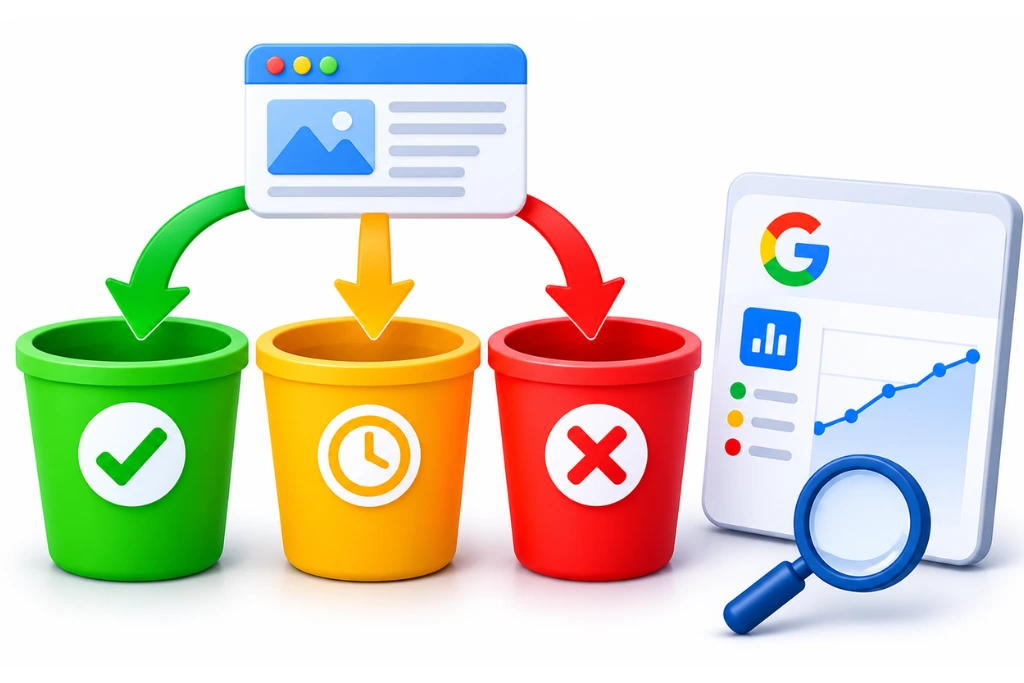
- Fix now: errors that stop pages you want indexed from being stored.
- Check intent: blocks that are fine when you meant them and harmful when you did not.
- Usually normal: redirects and duplicates, where Google is choosing one version to keep.
|
Status in the report |
Bucket |
First move |
Read next |
|
Server error (5xx) |
Fix now |
Check server logs and hosting | |
|
Redirect error |
Fix now |
Trace the chain to one hop | |
|
Not found (404) |
Fix now if important |
Restore or redirect valuable URLs |
See section below |
|
Soft 404 |
Fix now |
Return a real 404 or add content |
See section below |
|
Blocked due to unauthorized request (401) |
Fix now if public |
Remove login from public pages |
See section below |
|
Blocked due to access forbidden (403) |
Fix now if public |
Check firewall and bot rules |
See section below |
|
URL blocked due to other 4xx issue |
Fix now |
Inspect the exact status code |
See section below |
|
URL marked ‘noindex’ |
Check intent |
Confirm the tag is deliberate | |
|
URL blocked by robots.txt |
Check intent |
Confirm the rule is deliberate | |
|
Page with redirect |
Usually normal |
Update internal links | |
|
Alternate page with proper canonical tag |
Usually normal |
Nothing, if the canonical is right | |
|
Duplicate without user-selected canonical |
Usually normal |
Add a canonical tag | |
|
Duplicate, Google chose different canonical than user |
Check intent |
Compare both URLs | |
|
Crawled – currently not indexed |
Check intent |
Review quality and duplication | |
|
Discovered – currently not indexed |
Check intent |
Review crawl load and links |
Fix now: errors that block pages you want indexed
These reasons mean Google tried to fetch a URL and got an error. If the URL is a page you want in search, fix it first. Start with revenue pages, such as products, services and lead forms, and fix templates before single URLs.
Server error (5xx)
Your server returned a 500 range error when Googlebot asked for the page. Common causes are an overloaded host, a crashing plugin or a firewall that times out bots. Check your hosting logs for the dates in the chart. If the errors are spread across the site, see our guide on why Google is not crawling your pages.
Redirect error
Google could not follow the redirect. Google lists four causes: a chain that is too long, a loop, a redirect URL that grows past the maximum length, and a bad or empty URL in the chain. Point each old URL straight at its final page in one hop. The clean-up is covered in our post on 301, 302 and redirect chains.
Not found (404)
The URL returned a 404. That is correct for pages you removed on purpose, so do not panic about every 404. Act when the URL had links, traffic or sales. Restore the page, or redirect it to the closest relevant page.
Soft 404
Google’s definition is a page that “returns a user-friendly ‘not found’ message but not a 404 HTTP response code.” In practice it is often an empty category, a search page with no results or an out of stock product with no content. Either return a real 404 or 410, or give the page enough useful content to stand on its own.
Blocked due to unauthorized request (401)
Googlebot was asked to log in. This is right for account and staging pages. It is wrong if a public page sits behind a password, which often happens after a staging site goes live with its login still on.
Blocked due to access forbidden (403)
The server refused Googlebot. Security plugins, CDN bot rules and country blocks are common causes. If the page should be public, allow Googlebot through, then test it with URL Inspection.
URL blocked due to other 4xx issue
The server returned a 4xx code that is not 401, 403 or 404, such as 410 or 429. Inspect one example URL to see the exact code. A 410 on a removed page is fine. A 429 means your server is rate limiting Google, which needs a hosting fix.
Check intent: URL marked ‘noindex’ and URL blocked by robots.txt
These two rows are not errors in themselves. They show pages you, or your platform, told Google to leave out. The only question is whether you meant it.
URL marked ‘noindex’
The page carries a noindex rule in a meta robots tag or an X-Robots-Tag header. That is right for thank you pages, cart pages, internal search and thin archives. It is a serious problem when it hits products, services or blog posts.
Accidental noindex usually comes from a theme or SEO plugin setting, or from a staging site that went live with “discourage search engines” still on. Switch the filter to “All submitted pages”. Any noindex URL in your sitemap is a contradiction you should resolve. Our guide to robots.txt vs noindex covers which to use when.
URL blocked by robots.txt
Googlebot was not allowed to crawl the URL. Blocking checkout paths, admin areas and endless filter URLs is normal. Blocking product, category or blog folders is not. Open your robots.txt file and match the blocked examples to a rule. Our guide on writing a robots.txt file shows how to block waste without hiding the pages that matter.
Usually normal: redirects and canonical duplicates
These four rows mean Google found more than one version of a page and kept one. The first three are usually normal. Treat “Duplicate, Google chose different canonical than user” as a check intent row, because Google overrode your choice.
Page with redirect
Google says this is “a non-canonical URL that redirects to another page” and that it “will not be indexed.” That is expected for old URLs, http to https and non-www to www moves. Update internal links and your sitemap so they point at the final URL. Then this row will shrink over time.
Alternate page with proper canonical tag
The page points to another URL as its canonical, and Google agreed. Google is doing what you asked. Google’s examples are an AMP page with a desktop canonical and mobile or desktop versions of the same page. You will often see it for product variants and tracking parameters too. No fix is needed if the canonical target is the page you want.
Duplicate without user-selected canonical
Google found duplicates and you did not say which version you prefer, so Google picked one. Add a canonical tag on the duplicate that points to your preferred URL. Canonical tags do not always hold, and our guide explains when they fail.
Duplicate, Google chose different canonical than user
You named a canonical, but Google picked another URL. This is the one duplicate row worth a closer look. Google’s help page says that if your declared canonical is not similar to the page, Google will not choose it. Inspect one example and compare the user-declared and Google-selected canonical fields. Our post on how Google chooses a canonical URL covers the signals in detail.
Crawled – currently not indexed vs Discovered – currently not indexed
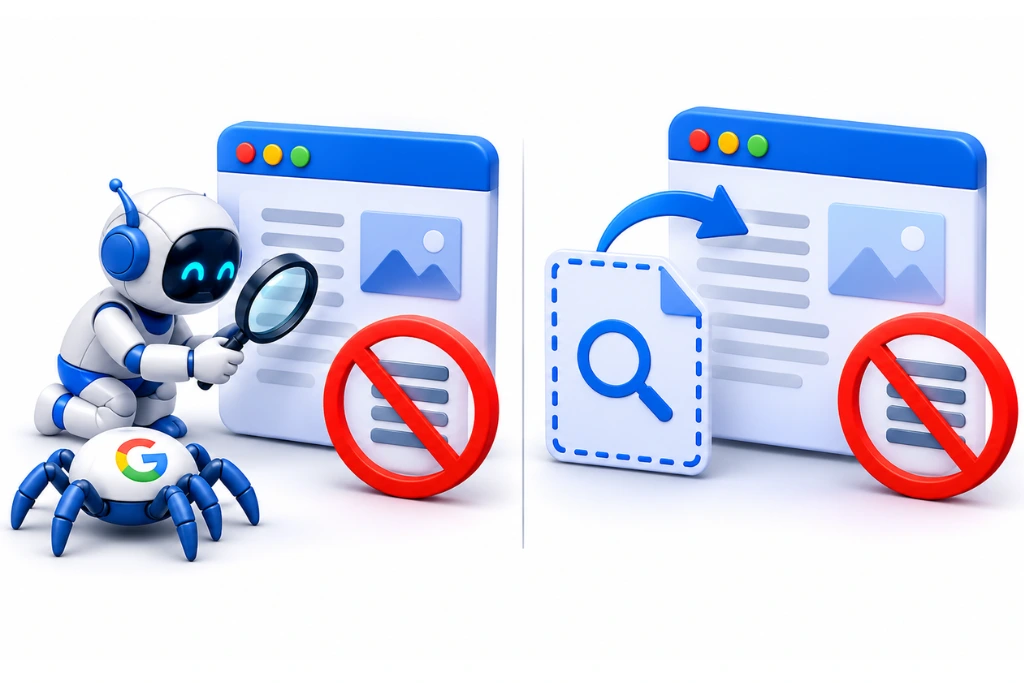
Both rows mean the page is not indexed yet. With “Discovered”, Google knows the URL but has not crawled it. With “Crawled”, Google fetched the page and chose not to index it for now.
Crawled – currently not indexed
Google’s help page calls this “a common message for many sites”, because Google does not index every page it sees. Look first at three things: is the page thin or close to another page, is it well linked from the rest of the site, and was it indexed before? A page that drops out after being indexed deserves more attention than a new one. Our full guide to Crawled, currently not indexed covers the fixes.
Discovered – currently not indexed
Google’s help page says Google wanted to crawl the URL “but this was expected to overload the site”, so it rescheduled the crawl. Look at server speed, at how many low value URLs compete for crawling, and at whether the page has internal links. Google’s crawl budget guide for large sites lists a large share of “Discovered – currently not indexed” URLs as one of the cases where crawl budget matters. Read our posts on discovered vs crawled, currently not indexed and when crawl budget actually matters for the next steps.
The two warnings: Indexed, though blocked by robots.txt and Page indexed without content
The “Improve page experience” table lists issues that did not stop indexing. Google says these warnings “don’t prevent a page from being indexed.” There are only two, and both are worth a look.
Indexed, though blocked by robots.txt
The page is in Google even though robots.txt blocks crawling. Google’s introduction to robots.txt explains why: if other pages link to the URL, Google can index the address without visiting the page. The same guide says robots.txt “is not a mechanism for keeping a web page out of Google.” If you want it out, allow crawling and add noindex. If you want it in, remove the block.
Page indexed without content
Google says the page “appears in the Google index, but for some reason Google could not read the content.” Google also says this is not a robots.txt block. Typical causes to check are content that only loads through JavaScript, a cloaking or bot rule that serves Google an empty page, or a format Google cannot read. Run a live test in URL Inspection and look at the rendered HTML. Our post on how Google renders JavaScript pages explains where rendering breaks.
Reading the example URLs and using URL Inspection
The example URLs under each row are a sample, not a full list. Click any row to see the chart for that reason and its examples. Use them to find the template behind the problem, then confirm one URL with URL Inspection.
The 1,000-row limit
Google says the examples table “is limited to 1,000 rows”. It also says the list is not guaranteed to show every URL with that status, even when there are fewer than 1,000. So do not treat an export as a full audit. If a row has 40,000 pages, you are looking at a slice.
Spotting template patterns
Export the examples and sort them by path. Look for shared folders and parameters like /tag/, /page/2/, ?color= or /ar-ae/. One pattern behind hundreds of URLs means one template fix, not hundreds of page fixes.
What URL Inspection tells you
Paste one example URL into the search bar at the top of Search Console. The URL Inspection tool shows Page fetch, Crawled as, Last crawl, the user-declared canonical and the Google-selected canonical. The last two fields show which URL Google chose and whether it matches yours.
The “Test live URL” button looks at the page as it is now. Google says the live test only confirms whether Google-InspectionTool can access your page for indexing. A passing test does not mean the page will be indexed. “Request indexing” is useful for a few key pages, but Google says there is a daily limit to how many index requests you can submit. For more ways to speed things up, see how to get new pages indexed faster.
UAE and bilingual sites: what the report shows on Arabic and English pages
On Arabic and English sites, the report often flags language pairs as duplicates. Encoded Arabic URLs, regional folders and expired sale pages also show up. Most guides skip these patterns, but they are common on UAE sites.
Arabic and English duplicate pairs
Google’s guide to localized versions of a page says localized pages “are only considered duplicates if the main content of the page remains untranslated.” So if your Arabic page still shows English product text, Google may treat it as a copy. You will see it under “Duplicate, Google chose different canonical than user” or “Duplicate without user-selected canonical”.
Hreflang tells Google the pages are language versions of the same content. Google’s rule is strict: each version must list itself and all other versions, and if two pages do not point to each other, the tags are ignored. Use x-default for visitors whose language settings match no version. As a practical check, make sure each language page has a canonical pointing to itself, not to the English page. For help with this setup, see our international and multilingual SEO service.
Percent-encoded Arabic URLs
Arabic slugs appear in the report as long strings of % codes. Google’s URL structure guide recommends percent-encoding non-ASCII characters in links, and gives an Arabic example. Problems can start when the same page is reachable through both an encoded and a raw link, or through two encodings. Decode a few examples and check that each one maps to a single canonical URL.
Regional folders such as /ar-ae/
If your store serves markets through folders such as /ar-ae/ and /en-ae/, each folder adds a full copy of your catalogue. Expect them in the duplicate and “Alternate page with proper canonical tag” rows. That is fine when canonicals and hreflang agree. It is a problem when a folder you sell in is missing from the “Indexed” sample.
Seasonal sale pages after DSF or White Friday
Dubai Shopping Festival and White Friday landing pages often get deleted after the sale. Weeks later they can appear under “Not found (404)” while still holding links from offer sites. Keep one evergreen sale URL and update it each season, or redirect old campaign URLs to the current offers page.
WooCommerce and Shopify filters and archives
Filter URLs, tag archives and sort orders can multiply a small catalogue into thousands of URLs. They tend to land in “Crawled – currently not indexed”, “Duplicate without user-selected canonical” or “URL blocked by robots.txt”. Decide which filtered views deserve their own page, and keep the rest out of your sitemap and internal links. Our e-commerce SEO services cover this clean-up for WooCommerce and Shopify stores.
Validate Fix: what each state means and how long it takes
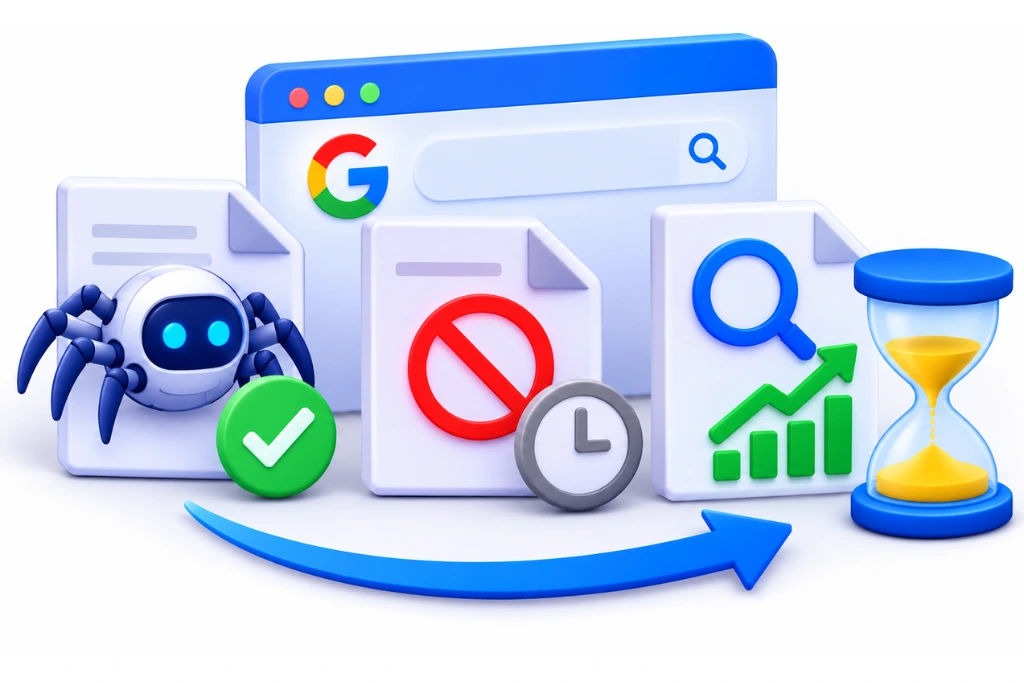
Validate Fix asks Google to recheck the URLs in a row after you fix them. It is a process that runs over days or weeks, not an instant button. Google says validation typically takes up to about two weeks, but in some cases can take much longer.
The validation states
Google lists these states for a validation request:
- Not started: some URLs have never been part of a validation request.
- Started: Google has begun rechecking and has not found the issue again yet.
- Looking good: every URL checked so far has been fixed.
- Passed: all known URLs are fixed or no longer available.
- N/A: Google found the issue fixed on all URLs without you starting validation.
- Failed: a certain share of pages still has the issue after you clicked Validate Fix.
Each URL inside the request also gets its own state: Pending, Passed, Failed or Other.
Why validation fails
A frequent cause is a partial fix. The template was fixed, but some URLs still carry the old tag, redirect or status code. Another cause is clicking Validate Fix before the change is live on every server or cache. Open the failed examples, inspect two or three, fix what remains, then start validation again.
Some rows, such as “Crawled – currently not indexed”, depend on Google’s own choice. There, better content and links help more than another validation request.
A 15-minute monthly routine
Once a month, set a timer and run through these steps:
- Set the filter to “All submitted pages” and note the indexed and not indexed counts.
- Look for any new row, and any sharp rise in an existing row since last month.
- Check the “Fix now” rows first: 5xx, redirect error, 404, soft 404, 401, 403 and other 4xx.
- Open “URL marked ‘noindex'” and “URL blocked by robots.txt” and confirm nothing important is in them.
- Inspect one URL from “Duplicate, Google chose different canonical than user” and compare canonicals.
- Inspect two Arabic URLs and two English URLs if you run a bilingual site.
- Check open validation requests and log anything that failed.
If the report shows more rows than your team can work through, our SEO audits and diagnostics service reviews your Page indexing report and ranks the fixes by business impact.
FAQ
Page indexing is Google storing a URL in its index so it can appear in search results. In Search Console, the Page indexing report under Indexing > Pages shows how many of your URLs are indexed and why the rest are not. Each not indexed URL is listed under a fixed reason, such as “Soft 404” or “Page with redirect”.
Google does not aim to index every URL on a site. Its help page says you should expect only the canonical pages to be indexed. Redirects, duplicates, filter URLs and pages you blocked on purpose all stay out by design. Focus on submitted pages that show an error, a noindex you did not intend, or a long stay in the two “currently not indexed” rows.
Google’s help page says it can take a week or so for Google to start crawling and indexing a new page or site. The report itself shows processed data, so changes appear with a delay. Validation of a fix typically takes up to about two weeks and can take much longer.
No, in most cases it means things are working. The page points to another URL as its canonical, and Google agreed and indexed that other URL instead. Only act if the canonical target is the wrong page or is not indexed itself.
With “Discovered – currently not indexed”, Google knows the URL exists but has not crawled it yet, often because crawling was expected to overload the site. With “Crawled – currently not indexed”, Google fetched the page and decided not to index it for now. The first points to crawl capacity and internal links, the second to page quality and duplication.
Validation fails when a certain share of the rechecked pages still has the issue. This usually means the fix reached only part of the template, or the change was not live yet. Inspect the failed examples, fix what remains and start validation again.
You cannot force indexing, but you can ask. Use URL Inspection and click “Request indexing”, which has a daily limit. Make sure the page returns a 200 status, has no noindex, is in your sitemap and has internal links from relevant pages.
Add a noindex rule to the page, or put it behind a password. Do not rely on robots.txt alone. Google says robots.txt is not a way to keep a page out of Google, and a blocked URL can still be indexed if other pages link to it.
Google says you should not expect the report’s totals to match your own estimate of the URLs on your site exactly. The report also counts URLs you never meant to publish, such as parameters and old addresses. If the total is much smaller than your real page count, Google may not be finding all your pages, so check your sitemap and internal links.
Sources
- Google Search Console Help: Page indexing report
- Google Search Console Help: URL Inspection tool
- Google Search Central: Crawl budget management for large sites
- Google Search Central: Tell Google about localized versions of your page
- Google Search Central: Introduction to robots.txt
- Google Search Central: URL structure best practices
- Search Engine Roundtable: Google Search Console coverage report renamed to pages